Fancy Steel App User Guide
A simple, step-by-step guide to connect your device, learn the buttons, and enjoy easy wireless control.
 Section 01
Quick Overview: How It Works
The Fancy Steel app connects your phone directly to your smart hardware. You can control it yourself, or invite an authorized partner to control it remotely for you.

Two Ways to Connect
Internet or Local• Internet Mode: Control your device from anywhere in the world over Wi-Fi or mobile cellular data.
• Local Mode: Control your device directly at home without needing internet. It is 100% private and offline.

You or a Partner
Full Freedom• Device Owner: You set up the device, name it, and have full master control.
• Partner Access: You can invite a partner by email. They can lock, unlock, and zap your device from their own phone!
 Section 02
Easy Setup Guide: Unboxing to Home Screen
Follow these simple steps to connect your device, enter your home Wi-Fi, and create your account.
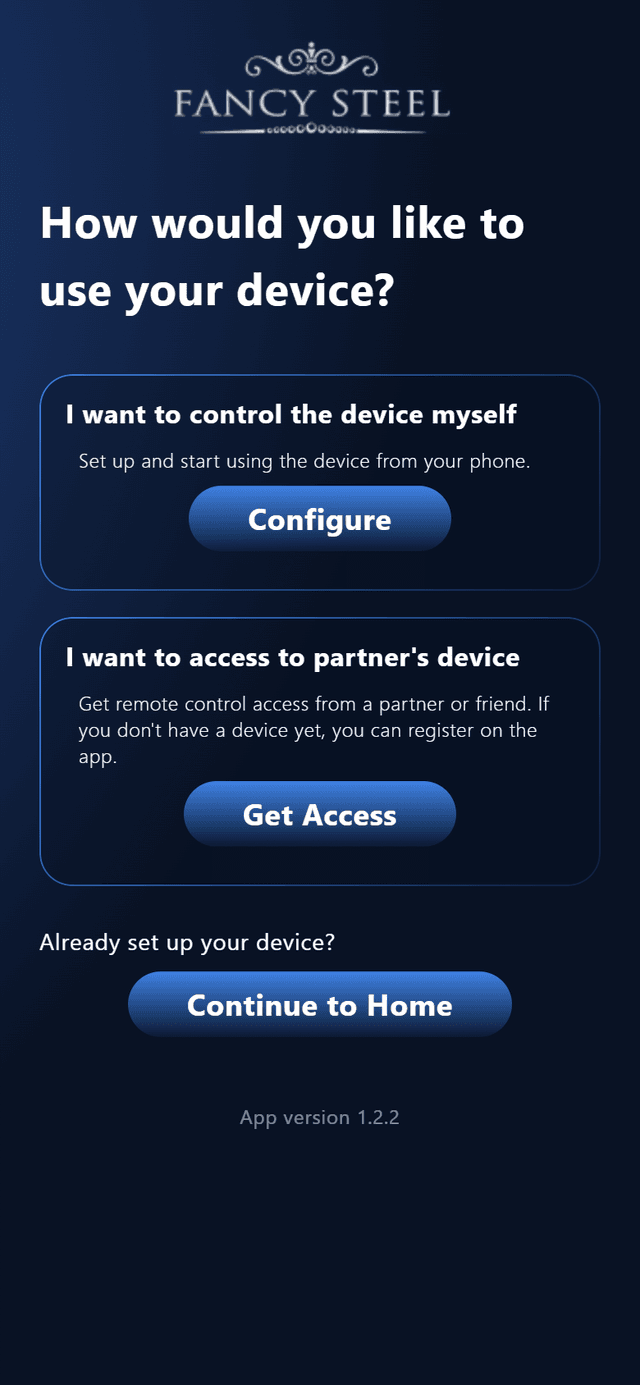
Choose How You Want to Use the Device
When you open the app for the first time:
- If you own the device: Tap “I want to control the device myself” to start pairing.
- If you are a partner: Tap “I want to access to partner's device” to sign up with your email.
 Already set up? Tap “Continue to Home” to log straight into your account.
 Tap to Enlarge
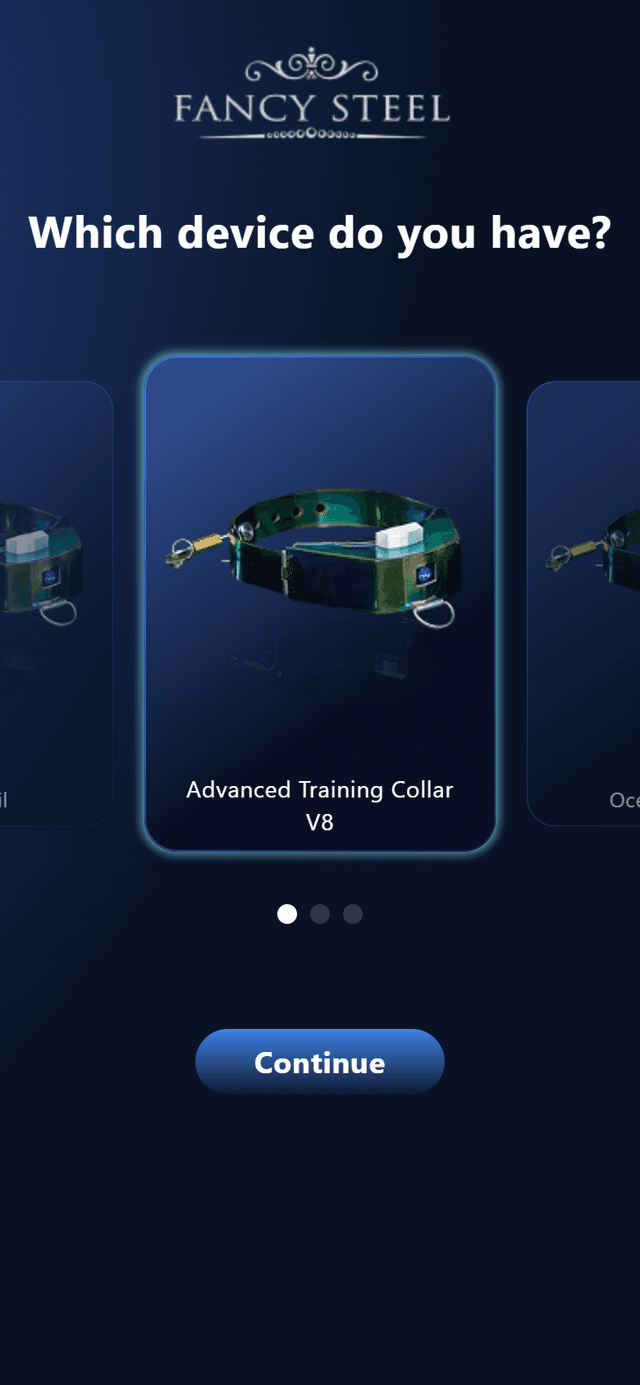
 Which Device Do You Have?
Swipe left or right through the carousel to find your Fancy Steel device (e.g. Advanced Training Collar V8).
Once your model is selected, tap the blue Continue button.
 Tap to Enlarge
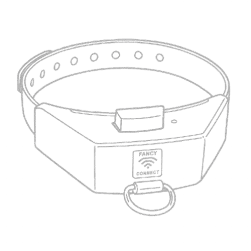
 Hold Upside Down & Press Power Button
For your safety, the device only turns on setup mode when held upside down. This makes sure nobody else can pair with your device:
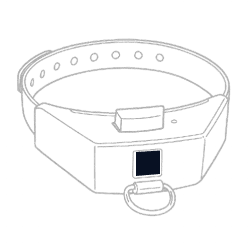 1. Start Off
Ensure your device is powered off before starting.
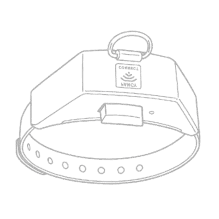 2. Turn Upside Down
Rotate your device so the bottom is facing up.
 3. Power On
Slide the power button while inverted. The light turns on!
 Connect Your Phone to the Device
Now that the device light is on, it is broadcasting its own temporary Wi-Fi network:
- Open your phone's Wi-Fi Settings.
- Find and tap on the network named “Fancy-AP” (or
FANCY-XXXX). - Once connected, return to the Fancy Steel app and tap Next Step →.
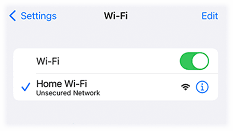
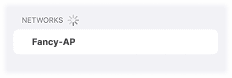 Tap “Fancy-AP” in Wi-Fi
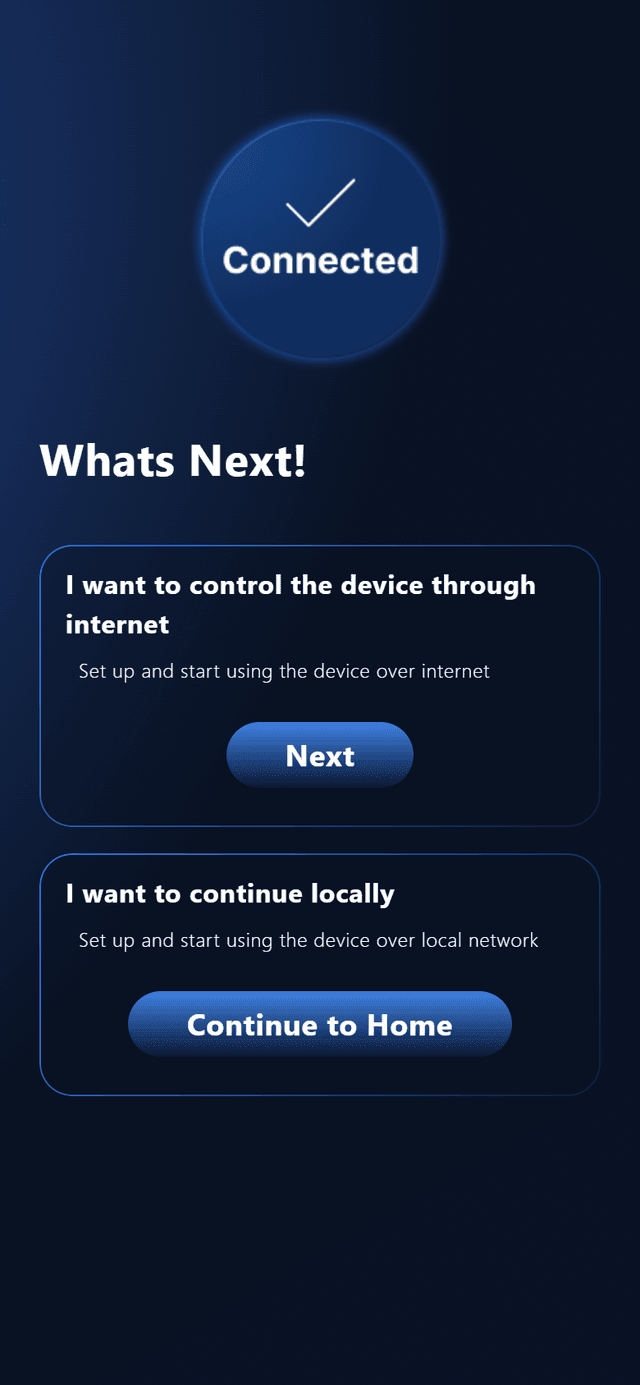
 How Do You Want to Connect?
Choose how you want to use your device:
- “I want to control through internet” (Recommended): Lets you control your device from anywhere in the world. Tap Next to enter your home Wi-Fi.
 “I want to continue locally”: Use the device only at home with no internet needed. Takes you straight to the home screen.
 Tap to Enlarge
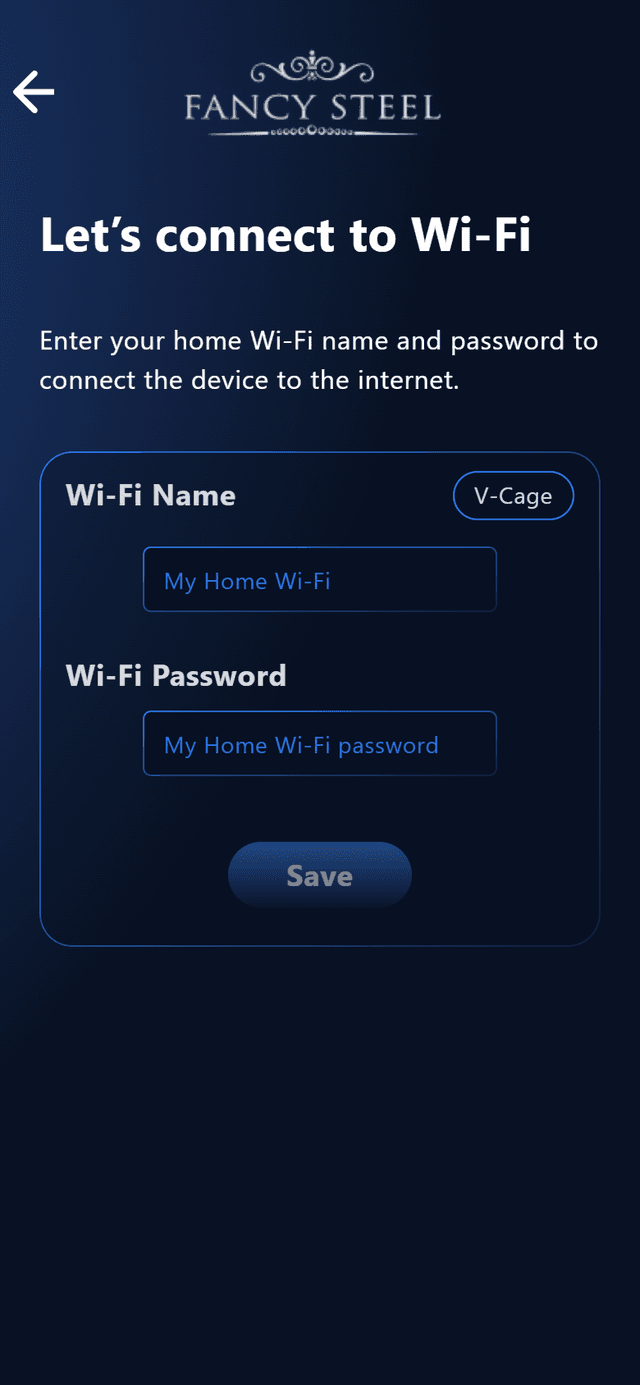
 Connect Device to Your Home Network
Type your home Wi-Fi network name (SSID) and your Wi-Fi password, then tap Submit.
Your device will remember your Wi-Fi password and connect to your home network automatically.
 Tap to Enlarge

Use 2.4 GHz Wi-Fi (Not 5 GHz)
Fancy Steel devices use standard 2.4 GHz Wi-Fi. They do not work with 5 GHz Wi-Fi networks.
- If your router shows two names: (e.g.
MyHomeandMyHome_5G), choose the standardMyHome(2.4 GHz) one. - Password Character Restriction: Your Wi-Fi password cannot contain
&,?,$,=, or@characters due to device hardware URL formatting. If your router password has these symbols, please change your password, set up a guest network without them, or connect via a V-Cage as a dedicated Wi-Fi repeater! - Public Wi-Fi: Networks that require a browser web login (like hotels or coffee shops) are not supported. Use your home Wi-Fi or mobile hotspot.
Restart Device & Reconnect Your Phone
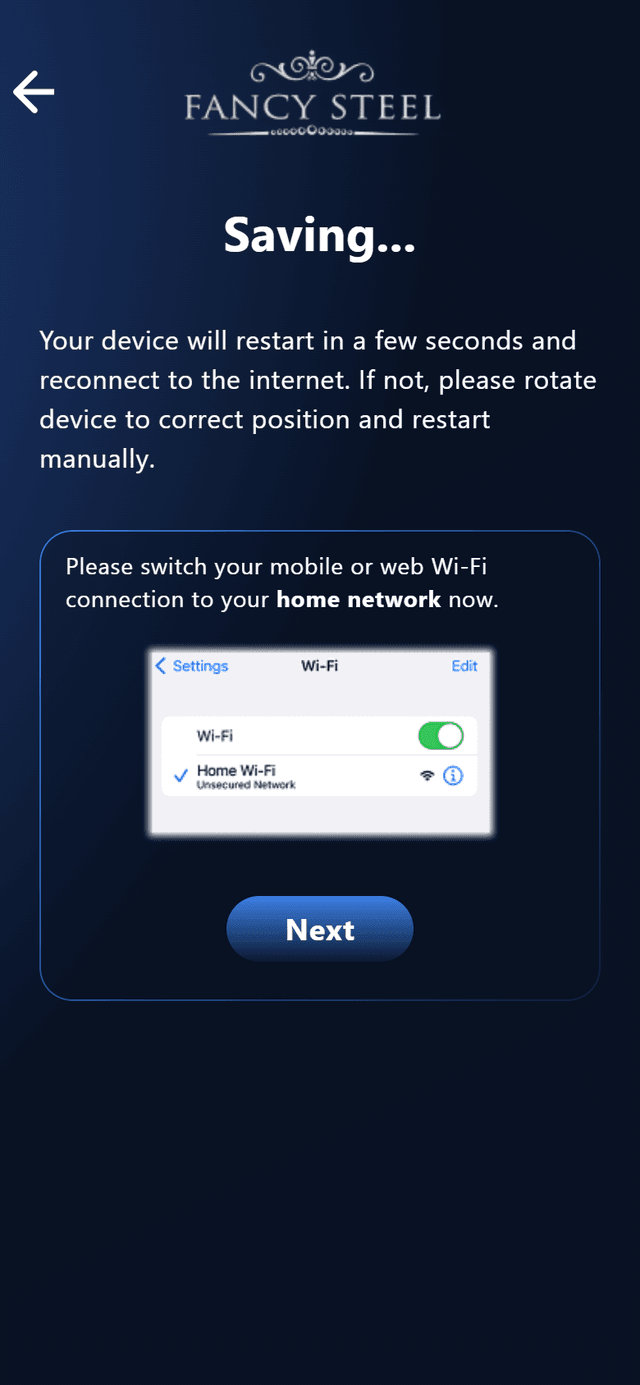
Immediately after saving your home Wi-Fi, the app displays the Saving... screen:
- Restart the Device: Rotate the device back to its normal upright posture and restart it manually by pressing the power button. The hardware will now connect to your home Wi-Fi.
- Switch Phone Wi-Fi: Open your smartphone's Wi-Fi settings and switch back to your normal Home Wi-Fi network(disconnecting from “Fancy-AP”).
- Tap Next: Return to the Fancy Steel app and tap “Next”. The app confirms your internet connection and brings you straight to account creation!
Note: Your phone must have active internet access to register and bind your device. If a connection error popup appears, make sure your phone has switched back to your home Wi-Fi before tapping Next.
 Tap to Enlarge
Binding the Device to Your Secure Account
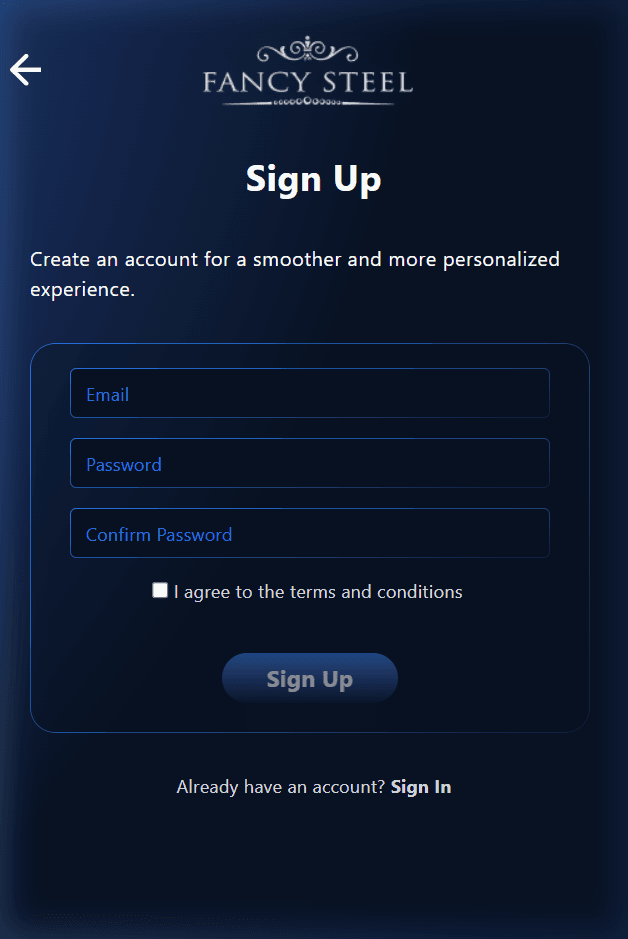
Once your device Wi-Fi is saved, create your free account to lock and control your device securely:
 Tap to Enlarge
Sign-Up Screen (/sign-up)
Enter your email, create a password, confirm it, and check the Terms box. Tap Sign Up.
 Tap to Enlarge
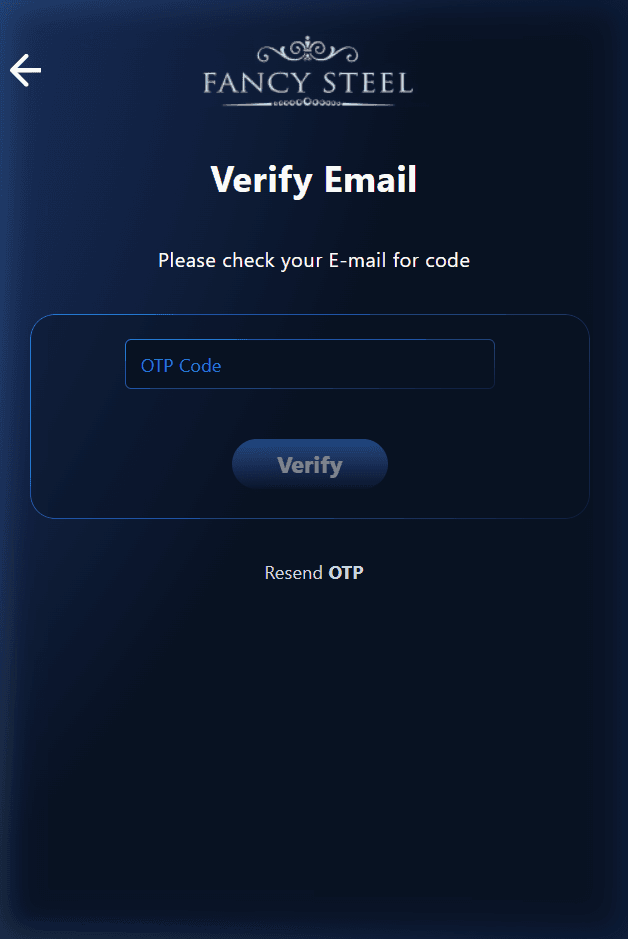
Verify Email (/verify-email)
Check your email inbox for the 4-digit code. Type it into the app and tap Verify.
Instant Access to Your Home Dashboard
As soon as you enter the 4-digit code, your account is activated and you arrive directly on the Home Dashboard with your device connected and ready to use!
 Your Device Is Ready to Control
Congratulations, setup is complete! Your device is now connected to your secure account.
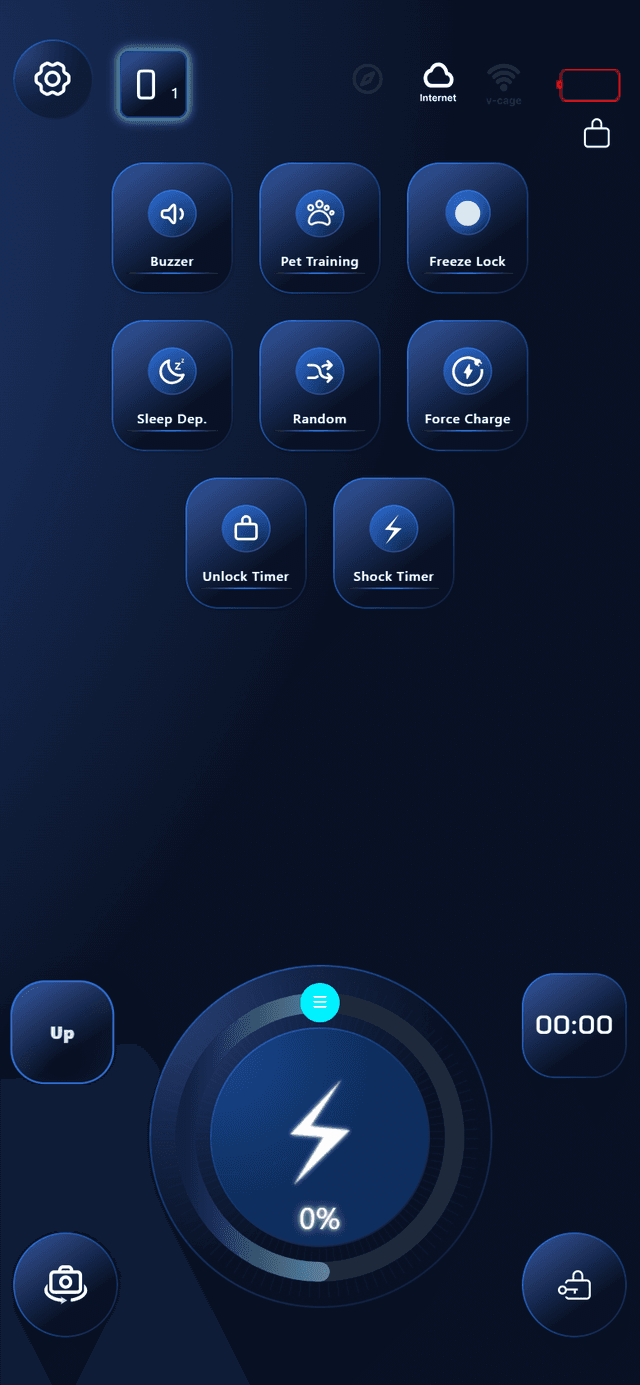
Whenever you open the app, this is your primary control screen. You can lock, unlock, zap, set timers, and adjust power right away.
 Tap to EnlargeSection 03
Home Screen & Live Controls
Here is what every button and status indicator does on your home screen.
 Top Status Bar (At a Glance)
The top header shows your device's connection, battery, and settings:

Settings (Gear)
Open settings to set clock, invite partners, change clock, or update Wi-Fi.
Device Switcher [0 1]
If you have more than one device, tap here to switch between them instantly.

Connection Status
Solid bright: Connected to your device.
Blinking: Connecting.
Dimmed (10%): Offline.
Connection Mode
Tap to switch easily between Internet Mode (anywhere) and Local Mode (home only).

V-Cage Boundary
Tap to connect to your V-Cage boundary.

Battery Level
Shows the current battery level of your device.
Tap to EnlargeMain Action Buttons

Power Dial & Zap
Shock IntensityRotate the circular knob to choose power from 0% to 100%. Tap and hold the lightning bolt in the center to deliver a zap at that power level.

Lock / Unlock Button
Physical LockLocated on the bottom right. Tap it once to physically lock the device. Long-press to unlock.

Mirror Display
Selfie ViewThe bottom-left button mirrors the display for use with the selfie camera.

Countdown Timers
Time DisplayShows the remaining lock time (e.g. 00:00) whenever a timed lock or training session is running.
 Section 04
Quick-Action Feature Buttons
The 8 buttons on the screen activate special features and training modes with a single tap.
Buzzer
Beep SoundMakes the device emit a beep. Great for locating the device or giving an audio warning.

Pet Training
Normal & Fast ModesFeatures two options—Normal and Fast—allowing users to adapt the training mode to different use cases.

Freeze Lock
Movement TriggerWhen turned on, the device detects movement—if the user moves too much, it automatically triggers a zap.

Sleep Dep.
Rest RemindersGives gentle periodic reminder pulses during scheduled rest intervals.

Random Stim
Surprise TriggersDelivers surprise zaps at random times within your safe power limits.

Force Charge
Enforced Time-OutIf battery drops below 15%, the collar beeps warnings. If uncharged, it delivers reminder shocks until plugged in and charged above 50%—forcing a wall-charging time-out!

Unlock Timer
Timed LockLocks the device for a set countdown time. It unlocks automatically when the timer reaches zero.

Shock Timer
Scheduled ZapAllows users to set a timer to deliver a zap at a specified time.
V-Cage Boundary
Tethered Virtual FenceTethers collar to a dedicated USB-powered Wi-Fi unit. If the wearer tries to cheat or leaves the room/range, the collar shocks them until they return! Also acts as a signal repeater.
Section 05Managing Your Devices
How to add a second device to your account, or remove a device if you transfer or sell it.
How to Add a New Device
+ Add to AccountIf you acquire another Fancy Steel device:
- Tap the Settings (Gear) icon on your home screen.
- Tap Devices.
- Scroll to the bottom and tap “+ Add New”.
- Pick your model and follow the quick Wi-Fi pairing steps.
- Done! You can now switch between devices anytime using the [0 1] button at the top of your home screen.

How to Remove a Device
Unlink HardwareTo safely disconnect a device from your account:
- Go to Settings > Devices.
- Tap on the device you want to remove.
- Scroll to the bottom and tap “Unlink Device”.
- Confirm the prompt. The device is removed from your account and ready for a new owner.
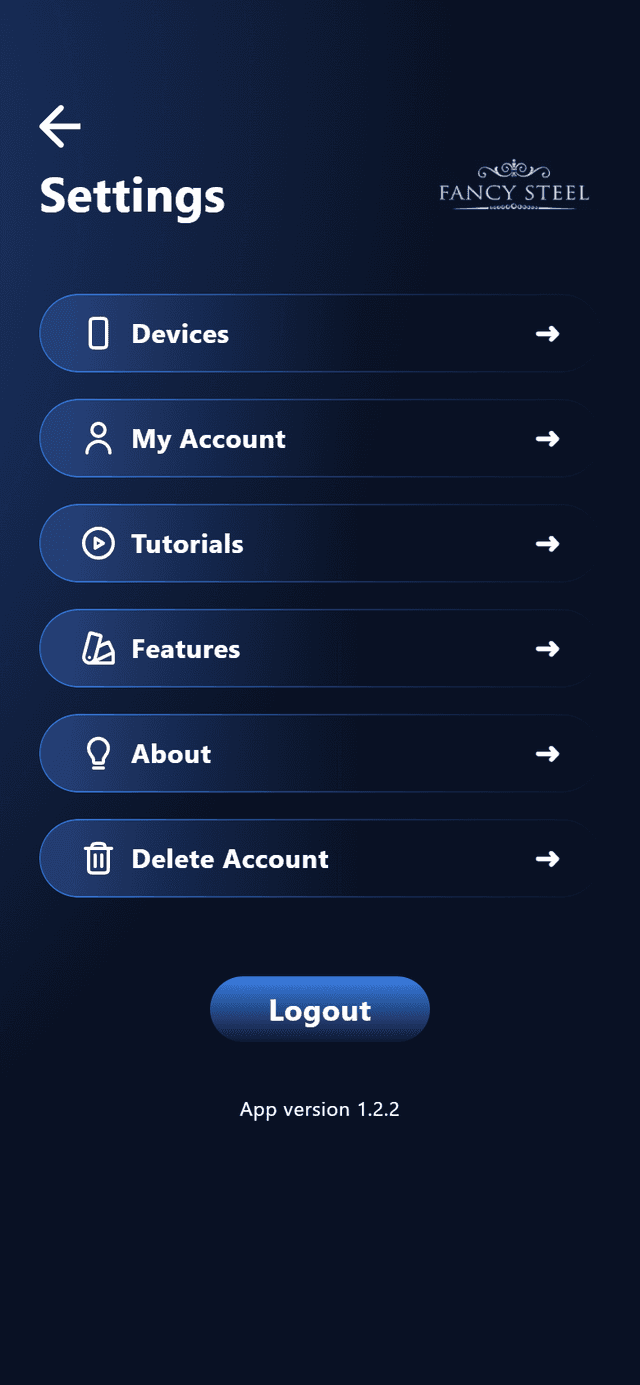
1. Settings Menu
Manage Devices, Account, Sounds, and App Version.
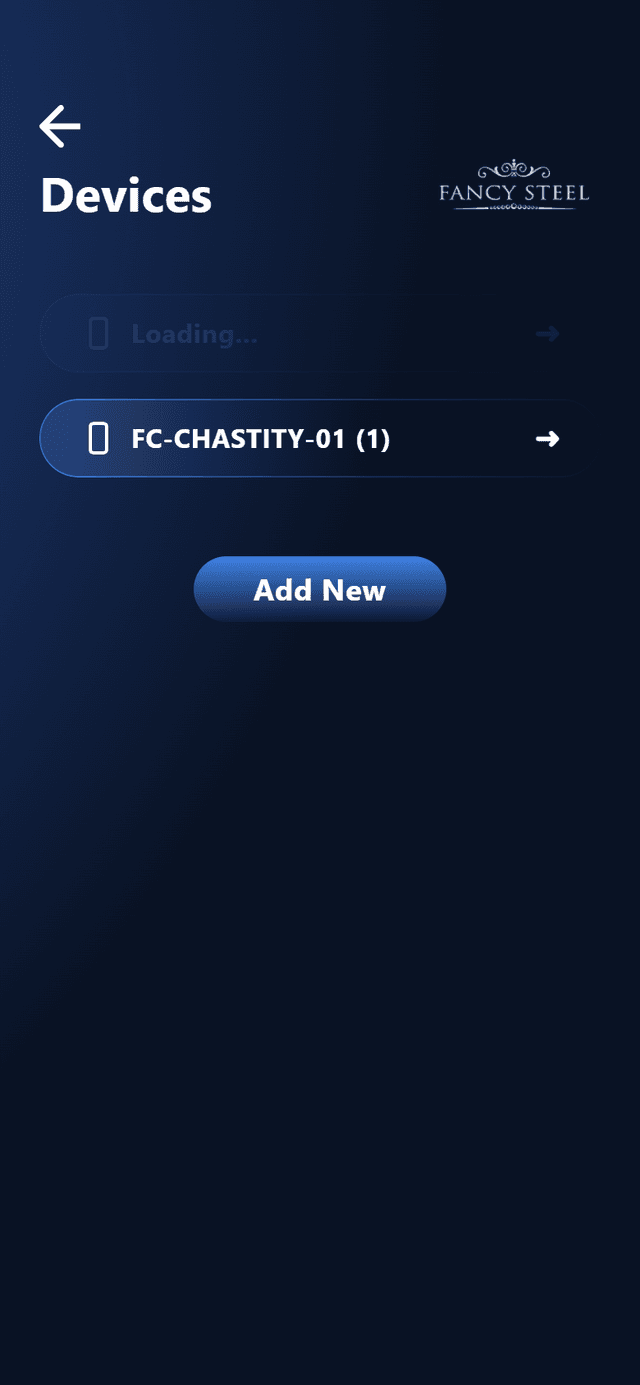
2. Devices List
See all your linked devices and tap “+ Add New”.
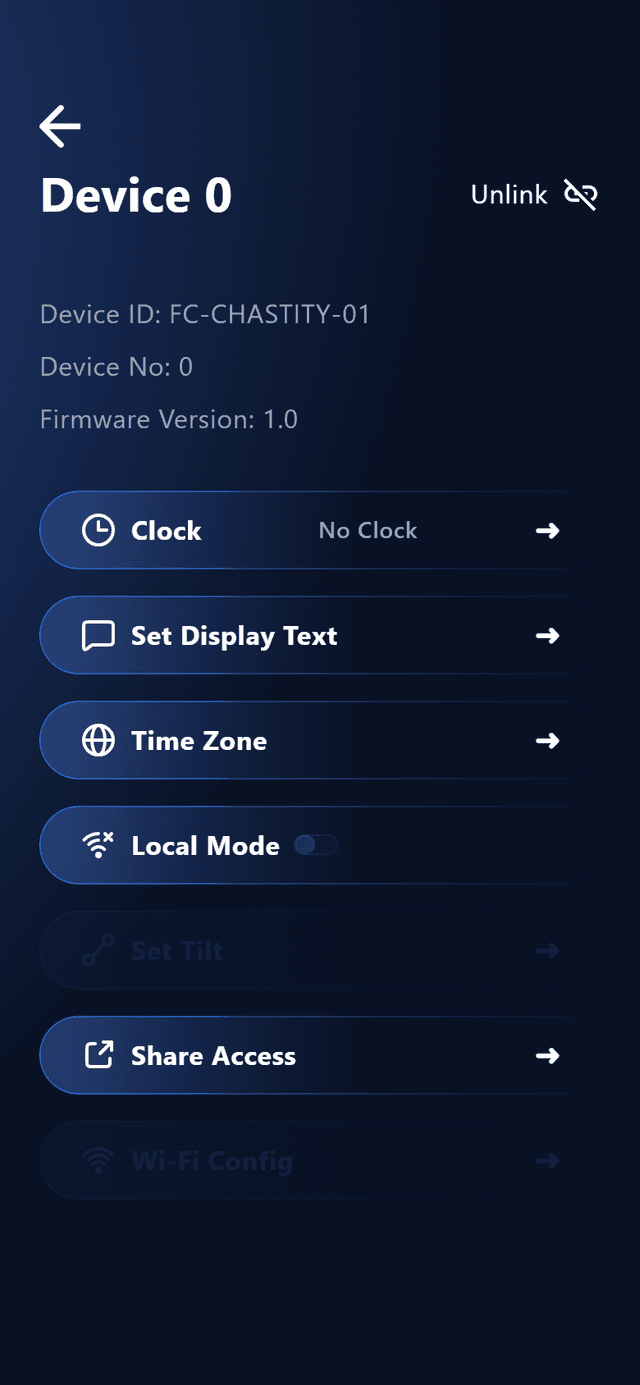
3. Device Options
Share Access with a partner, update Wi-Fi, or unlink.
Device Name & Screen
Customize what name displays on your phone and device screen.
Share Access (Partner)
Enter your partner's email to give them remote control access.
Sound Effects
Toggle lock click sounds, warning beeps, and audio feedback on or off.
Update Wi-Fi
Change your home Wi-Fi name or password without resetting pairing.
Set Tilt Calibration
Recalibrate posture trigger threshold in Local Mode. Wear the device and bend to the posture angle where you want Pet Mood to trigger, tap Get Tilt, then Save Tilt. You can also tap Reset to default at any time to restore the factory-tested baseline value.
Section 07Forgot Your Password? Easy Reset Steps
If you forget your password, you can reset it in 3 quick steps using your email.
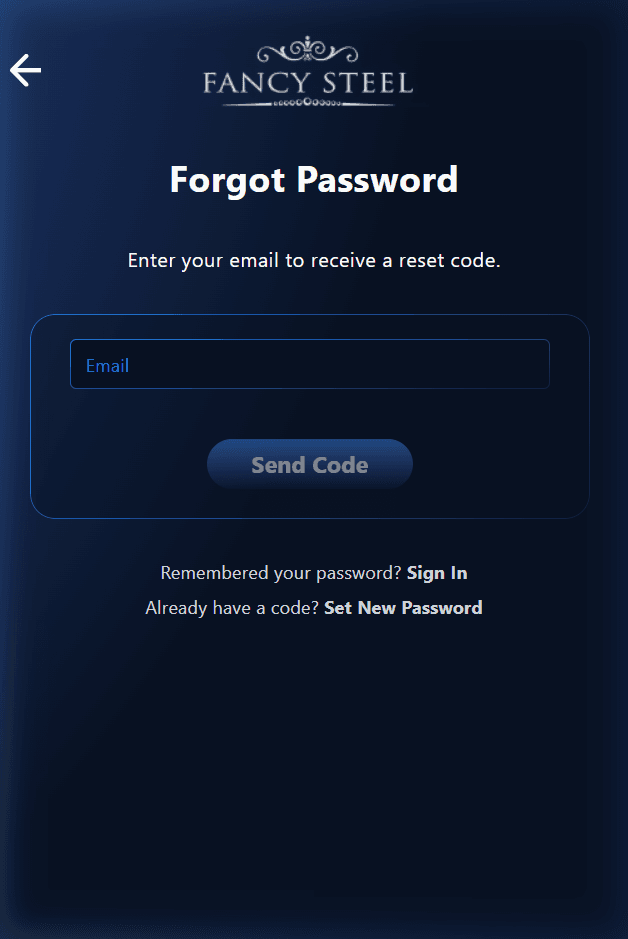 Tap to Enlarge
Request Reset Code
Type your registered email and tap Send Code.
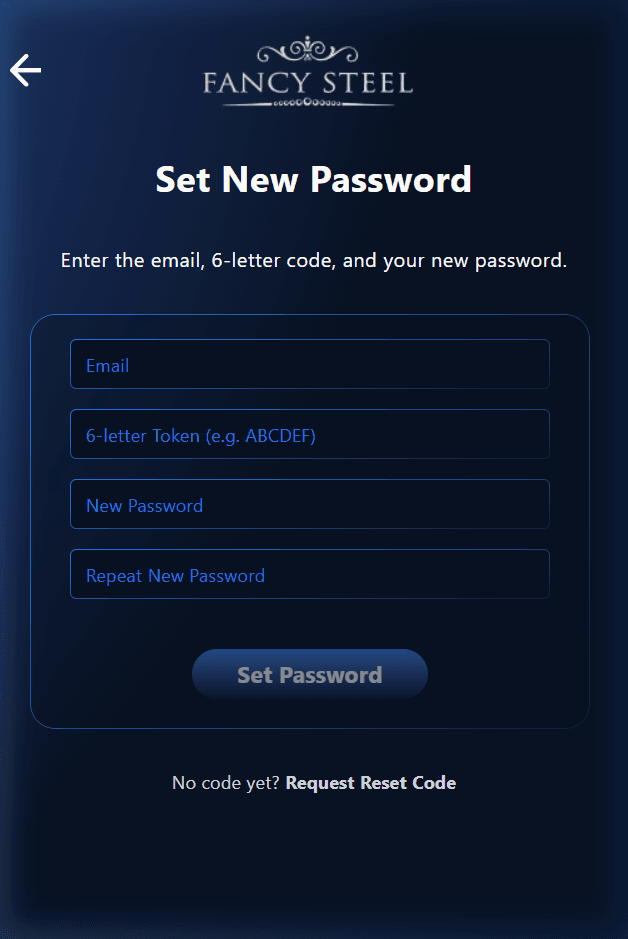 Tap to Enlarge
Enter Code & New Password
Type the 6-letter code from your email and choose your new password.
Tap “Forgot Password?”
On the sign-in screen, tap Forgot Password?. Enter your email and tap Send Code.
Check Your Email
Find the email from Fancy Steel with your 6-letter code (e.g. ABCDEF).
Set Your New Password
Type the code, enter your new password, and tap Set Password. You can now log right in!

Need Help? We're Here for You
If you have any questions or need help pairing your device, send an email to our support team and we will be happy to help.
 support@fancysteel.app
Experience Fancy Steel Today
Download the official Fancy Steel app for iOS and Android to connect and command your smart hardware.